How to Configure Cloudflare? Unlocking Faster, Safer Websites with Ease
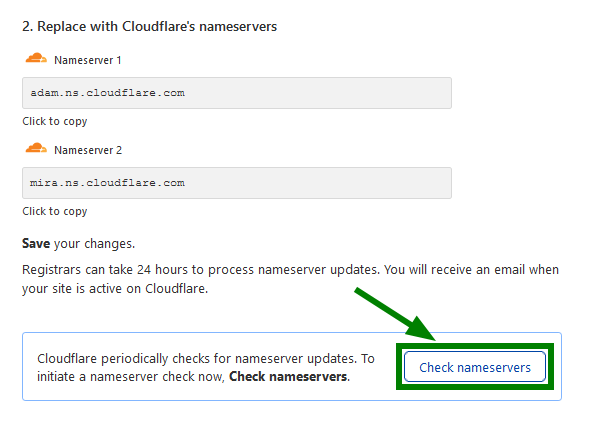
Understanding how to configure Cloudflare effectively is essential for website owners who want to boost performance, enhance security, and improve overall website management. Cloudflare has become a go-to platform for managing web traffic, mitigating threats, and optimizing load times. This guide provides a comprehensive step-by-step approach to mastering how to configure Cloudflare to get the most out of its powerful features.
Introduction to Cloudflare and Its Benefits
Cloudflare is a leading Content Delivery Network (CDN) and cybersecurity provider that offers a range of tools to improve website performance and security. By positioning Cloudflare between your visitors and your server, it reduces latency and shields your site from malicious threats such as DDoS attacks, spam, and malicious bots. Many website owners are drawn to Cloudflare because it simplifies complex tasks, providing an intuitive platform to manage DNS, caching, SSL, and more.
The benefits of Cloudflare extend beyond simple security enhancements; it delivers faster content delivery through its global server network, ensures website reliability during traffic spikes, and provides insights into visitor behavior and security threats. Knowledge of how to configure Cloudflare properly transforms this platform from a basic CDN to a comprehensive website optimization tool. Whether you’re an experienced developer or a small business owner, mastering its setup can lead to tangible improvements in user experience and operational security.
Prerequisites Before Configuring Cloudflare

Before diving into the actual configuration, it’s critical to prepare your environment to ensure a smooth setup process. First, you need access to your domain registrar where your DNS records are managed. This usually means having login credentials for your domain provider, whether it’s GoDaddy, Namecheap, or another registrar. Additionally, you should review and note your current DNS setup, including all subdomains and MX records, so you can replicate or modify them within Cloudflare without disruption.
Second, understanding your website’s hosting details and current SSL/tls configuration is vital. If your website already uses HTTPS, confirming the existing SSL certificate’s compatibility with Cloudflare’s SSL options will save time. Also, it’s beneficial to backup your DNS records before initiating any changes, as you might need to revert if issues occur. Proper preparation minimizes downtime and ensures a seamless transition to Cloudflare’s infrastructure, empowering users with confidence to explore advanced features later.
Step-by-Step Guide to Creating a Cloudflare Account
Creating a Cloudflare account is a straightforward process, but attention to detail during registration can set the foundation for a successful configuration. Begin by visiting Cloudflare’s official website and clicking on “Sign Up.” Fill in your email address and create a strong password, then verify your email through the confirmation link sent to your inbox. After account creation, you’ll be prompted to add your website, which is the first step toward how to configure Cloudflare effectively.
Once your account is set up, you will need to specify your website’s domain name during the initial setup wizard. Cloudflare will prompt you to choose a plan—free tiers are sufficient for most small-to-medium websites, but premium plans offer extra features such as advanced security and performance tools. After selecting your plan, Cloudflare will scan your current DNS records; review and confirm that all critical records (like your main domain, subdomains, email servers) are included. This step ensures essential services remain operational during transition and helps tailor your configuration to your unique needs.
Adding Your Website to Cloudflare – A Detailed Walkthrough
Adding your website to Cloudflare is a critical process that involves updating your DNS records to leverage Cloudflare’s network. After initiating the website addition process in your dashboard, Cloudflare performs a DNS scan to detect existing records. It’s important to carefully review these, ensuring all necessary entries such as your main domain, mail servers, or subdomains are correctly imported. Mistakes here can lead to email issues or website downtime, so take your time to verify each record.
Once your DNS records are confirmed, Cloudflare will generate new nameservers that you need to update at your domain registrar. Access your registrar’s control panel, locate the DNS management section, and replace your current nameservers with the ones provided by Cloudflare. Propagation of DNS changes can take a few hours, sometimes up to 24 hours. During this period, your website might experience brief interruptions; understanding this process helps set realistic expectations and ensures you’re prepared to monitor the transition closely.
Configuring DNS Settings in Cloudflare for Optimal Performance
DNS management within Cloudflare offers powerful options beyond basic record setup, enabling you to fine-tune your website performance. When configuring DNS settings, prioritize enabling “Proxied” mode (orange cloud) for main website records to route traffic through Cloudflare’s servers, leveraging caching and security benefits. Conversely, for services like email that require direct server contact, set DNS records to “DNS only” (grey cloud) to prevent conflicts.
Beyond basic setup, utilize Cloudflare’s TTL (Time-to-Live) settings to control how long DNS responses are cached, improving response times and reducing server load. You should also consider implementing DNSSEC for domain security, which authenticates DNS responses and guards against certain types of attacks. Carefully analyzing your DNS configuration ensures that your website remains fast, secure, and reliable, aligned with your performance goals, and makes how to configure Cloudflare an optimized process rooted in best practices.
Setting Up Caching Rules and Page Rules in Cloudflare
Caching is at the heart of Cloudflare’s performance benefits. Developing effective caching rules involves determining which assets should be cached, for how long, and under what circumstances. For static files like images, CSS, JavaScript, setting appropriate cache-control headers and adjusting Cloudflare’s cache expiration policies can significantly reduce server load and improve load times. Use Cloudflare’s “Page Rules” feature to create specific instructions for URL patterns—such as caching everything on certain pages or bypassing cache for dynamic content—to maximize efficiency.
Moreover, Page Rules enable customization of other performance and security settings, like redirecting URLs, setting browser cache TTL, or disabling security features on certain URLs. These rules are flexible and easy to execute, but should be used thoughtfully to avoid unintended consequences, such as cache mismatches or security loopholes. Consistent review and testing of caching policies allow ongoing refinement of your configuration, demonstrating how intentional rule setup directly impacts user experience and site responsiveness.
Enhancing Website Security with Cloudflare’s Security Features
Security is a core feature of Cloudflare, and configuring these tools effectively can shield your website from common threats. Start by enabling the Web Application Firewall (WAF), which detects and mitigates threats based on pre-configured rules and custom rules you can define. Additionally, turn on SSL/TLS encryption to secure data transfer between your visitors and servers, choosing the best mode (e.g., Full or Flexible) based on your existing SSL setup.
Further security enhancements include enabling rate limiting to prevent abuse, setting up IP blocking rules, and configuring CAPTCHA challenges to verify visitors during suspicious activities. Always monitor security analytics provided by Cloudflare for early threat detection. Training yourself on how these features work and properly activating and fine-tuning them transforms your website into a fortified digital environment, illustrating how attentive Cloudflare configuration significantly boosts proactive security, protecting your online presence from evolving cyber threats.
Troubleshooting Common Cloudflare Configuration Issues
Despite its user-friendly interface, misconfigurations or overlooked settings can lead to issues that impact your website’s performance and security. Common problems include DNS propagation delays, SSL handshake errors, or content not appearing as expected. An effective troubleshooting approach starts with verifying DNS records, ensuring the correct nameservers are in place and that DNS propagation has completed.
In addition, review the SSL/TLS settings if HTTPS issues occur, matching your origin server’s SSL configuration with Cloudflare’s mode to avoid certificate errors. When encountering caching anomalies or unexpected content delivery, clear Cloudflare’s cache and verify your cache-control headers. Regularly consulting Cloudflare’s analytics and logs can reveal patterns and pinpoint issues, allowing you to adapt your configuration proactively. Understanding these troubleshooting nuances equips you to resolve challenges swiftly, ensuring your website remains resilient, fast, and secure as you master how to configure Cloudflare comprehensively.
Conclusion
Mastering how to configure Cloudflare unlocks a multitude of benefits, including faster content delivery, enhanced security, and more streamlined website management. From initial account creation and DNS setup to caching rules, security features, and troubleshooting, each step demands careful planning and implementation. The platform’s flexibility allows for extensive customization tailored to your website’s needs, but it requires an understanding of best practices to avoid common pitfalls. By investing time in proper configuration, website owners can leverage Cloudflare’s full potential to deliver a safer, swifter, and more reliable user experience. Continued monitoring and refinement are key, making Cloudflare not just a tool but a vital asset in your website’s ongoing growth and security strategy.
Launch your own enterprise without spending any money upfront. Learn how to start a business without any initial investment. Click here to discover the secrets to building a successful venture from the ground up, all without needing to put any of your own money at risk.
Discover more from YuRaFa
Subscribe to get the latest posts sent to your email.





Leave a Reply